

Configure plugin
Configuration
Complete the steps below to enable and display Clearpay as a Payment Method and add Clearpay messaging to product pages.
If the ‘Clearpay Gateway Installation’ steps have just been completed, go to Step 3.
- Go to the WordPress Admin Dashboard.
- Go to Plugins > Installed Plugins.
- Find the Clearpay Gateway for WooCommerce in the plugin list and click Settings.
- Go to the Core Configuration section.
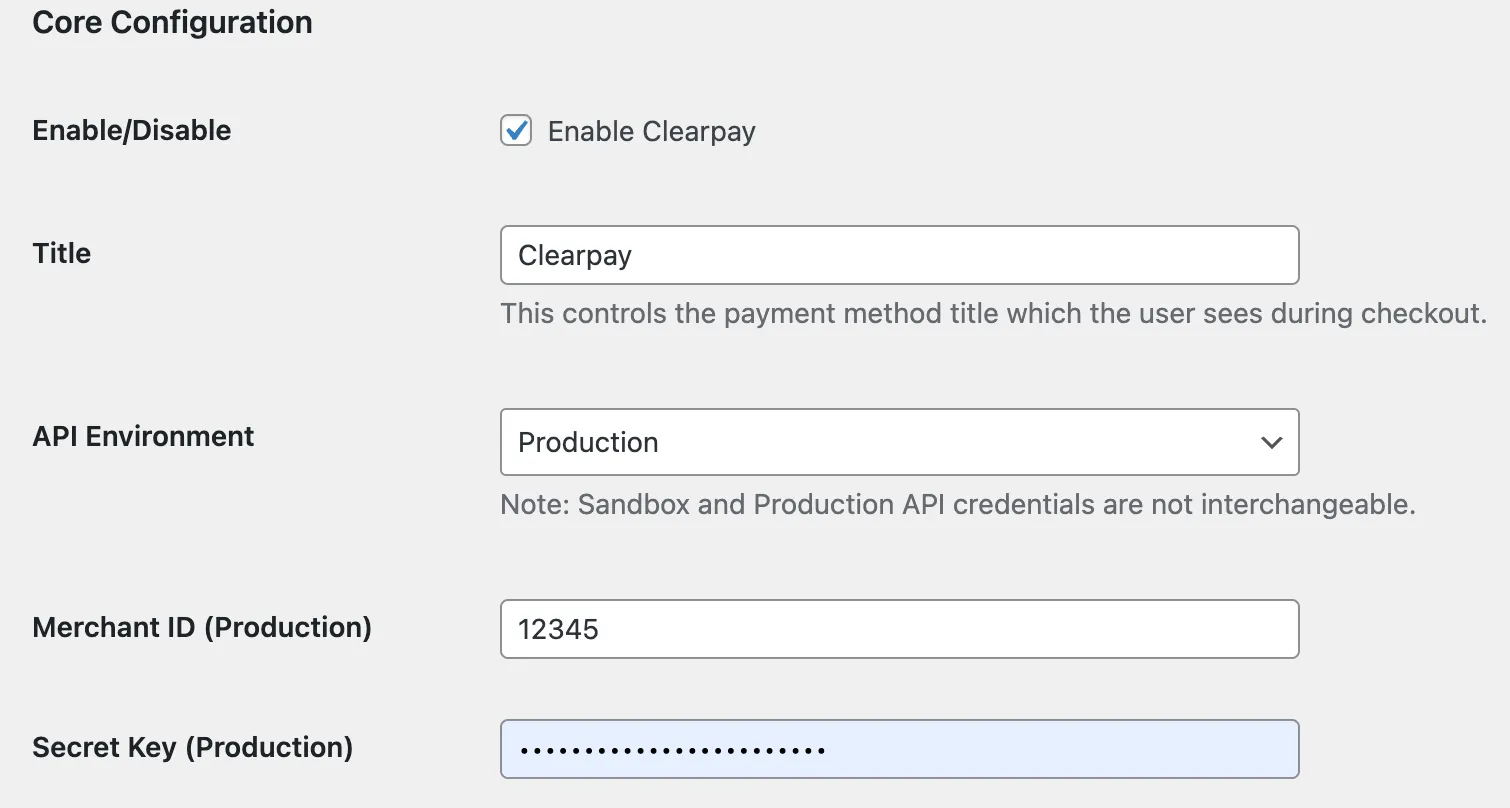
- Enter the Merchant ID provided by Clearpay into the Merchant ID field.

- Enter the Secret Key provided by Clearpay into the Secret Key field.

- Click the Save changes button at the bottom of the page.
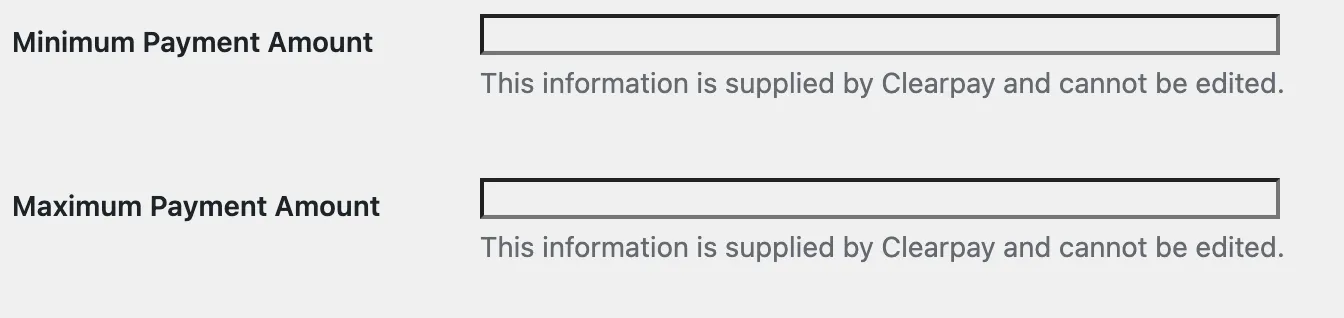
When the Clearpay credentials are saved, the Minimum Payment Amount and Maximum Payment Amount values are automatically updated.
Enable Express Checkout
- Go to the WordPress Admin Dashboard
- Go to Plugins > Installed Plugins
- Locate the Clearpay Gateway for WooCommerce in the plugin list and click the Settings button.
- Find Express Checkout Configuration and enable the Enable on Cart Page checkbox.

Enabling the Clearpay Messaging for WooCommerce
The Clearpay messaging can be enabled on:
-
Category Pages
-
Product Pages
-
Cart Page
To start do the following:
- Login to the Wordpress Dashboard.
- Go to Plugins > Installed plugins > Clearpay Gateway for Woocommerce and click Settings.
Under Settings, you can see settings for:
These settings are described below.
Payment Info on Category Pages
To enable the messaging on the Category page, do the following:
- Ensure the Enable checkbox is enabled.
- Enter the correct hook to position the messaging and set the priority to increase or decrease the height of the Messaging position. See the Hook section below.
Hook
The positioning of the Messaging for Woocommerce relies on a hook. This link is a guide to understanding hook positioning on Category pages.
The hooks for Category pages and Product pages are completely different.
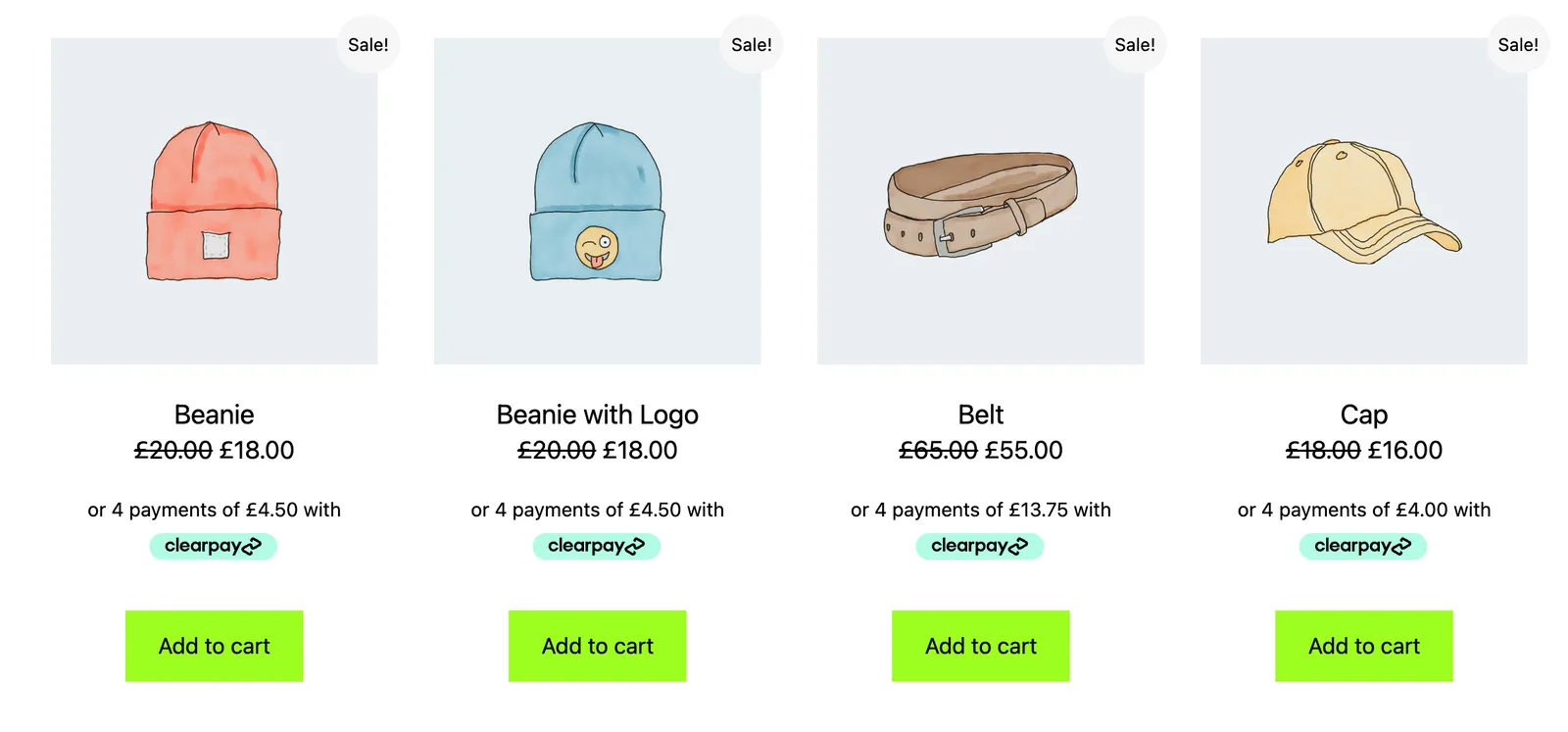
For example, use the hook woocommerce_after_shop_loop_itemto position the messaging under the price:

Below is an example of a category page with Clearpay messaging:
For more information on hooks, see the Hooks page.
Payment Info on Individual Product Pages
To enable the messaging on the individual Product page, do the following:
- Ensure the Enable checkbox is enabled.
- Enter the correct hook to position the messaging and set the priority to increase or decrease the height of the Messaging position. See the Hook section below.
Hook
The positioning of the Messaging for Woocommerce relies on a hook. This link is a guide to understanding hook positioning for Product pages.
The hooks for Product Pages and Category Pages are completely different.
For example, use the hook woocommerce_before_add_to_cart_form to position the messaging directly under the Product Page price:
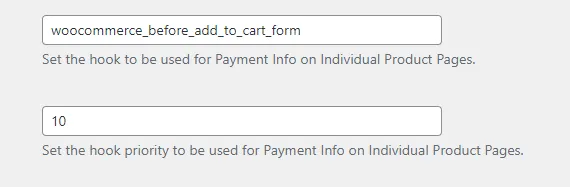
Below is an example of a Product Page with Clearpay messaging:
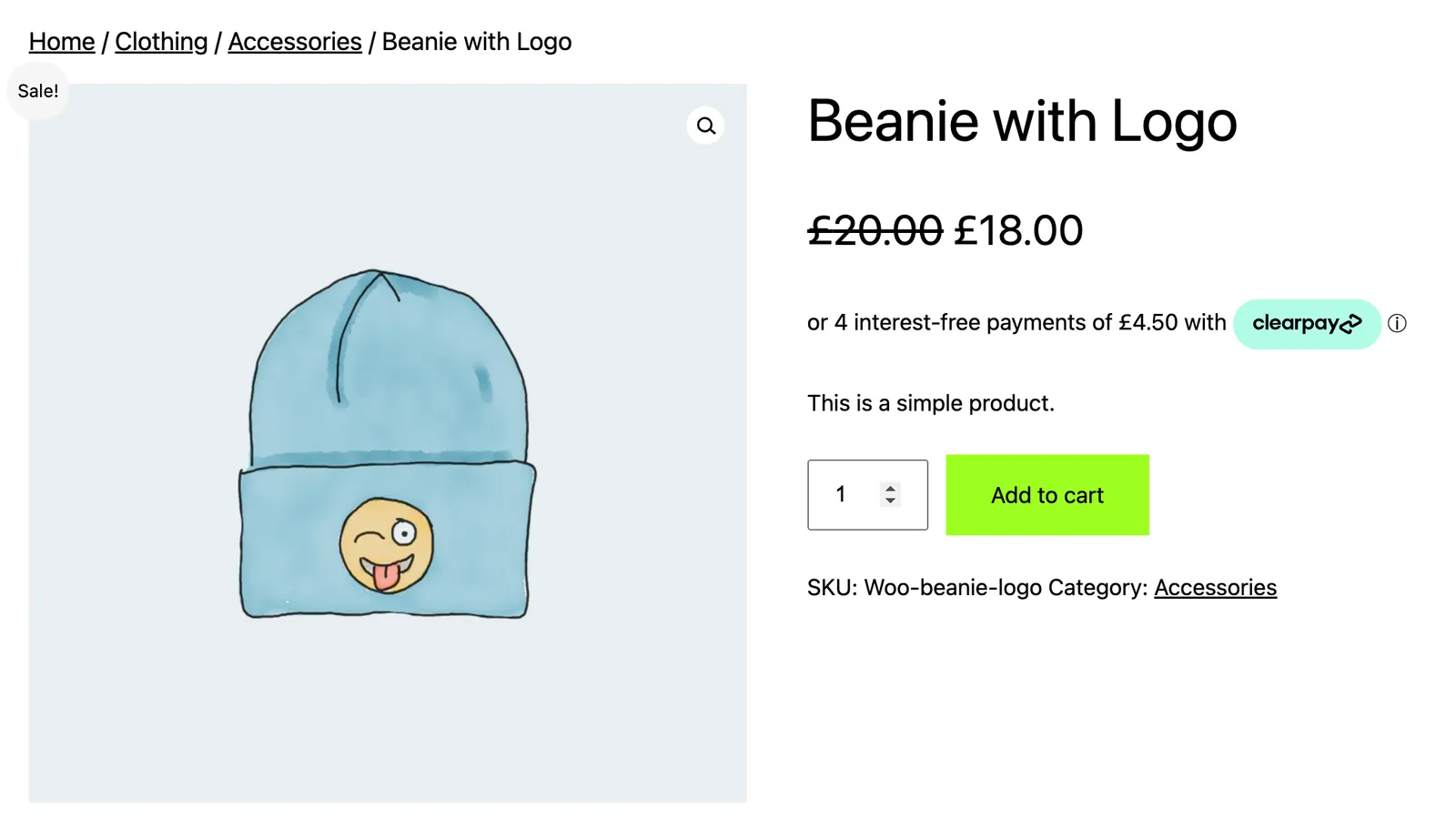
For more information on hooks, see the Hooks page.
Payment Info Display for Product Variant
This option enables the Clearpay Messaging for any variant products.
For example a product that has a price range from £50 - £200. The Clearpay Messaging will also display the instalment breakdown according to a price range.
When a customer selects a variant, a specific price appears. This option enables the Clearpay Messaging to display a specific price breakdown.