

Add a Clearpay Banner to Shopify
Banners show Clearpay information at the top of your Shopify page.
To add an Clearpay banner, you must edit your store’s code. Before you start, make sure that:
-
Shopify is already installed and running on your online store
-
You have decided what banner you want and it conforms to guidelines
You are changing your online store’s code, so be careful. We recommend you create a duplicate page and only publish it once you have verified the changes.
Follow the instructions below:
-
Click Actions and select Edit Code from the drop-down menu.
-
Scroll down to Sections and click Add a new section.
-
In the Create a new section called field enter clearpay-banner. The clearpay-banner.liquid tab appears.
-
Delete the code that populates the clearpay-banner.liquid tab.
The Liquid file
The next task is to copy and paste the banner code snippet to the liquid file:
-
Click the link to the banner code snippet.
-
Click the Copy to Clipboard button.
-
Paste the banner code snippet into the clearpay-banner.liquid tab.
-
Click Save.
Theme Liquid
Now you must edit the theme.liquid file. Follow the instructions below:
-
Open the theme-liquid.
-
Find the line with `
{% section 'header' %}. Add the line{% section 'clearpay-banner' %}above it. See line 4 of the code extract below.
- Click Save.
Preview and Check
To check your work:
- Click Preview and verify the changes. The picture below shows a banner:

Optional
To make minor adjustments use the Theme Editor. Do the following:
-
Click Customize theme to open the Theme Editor.
-
Click Clearpay banner from the sidebar.
-
You can show or hide the Clearpay banner, select the background and text colors, and also select the Clearpay logo color. See picture below:
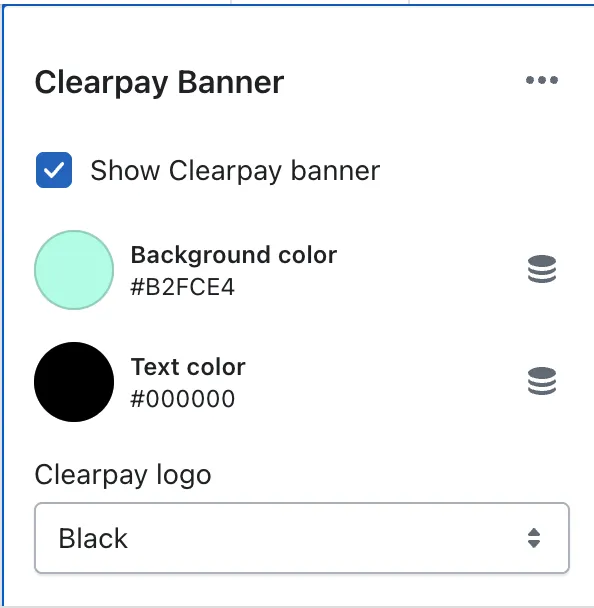
For examples and information on all our brand assets, including banners, see the Clearpay Marketing Resources page.
Change the color of the Clearpay banner
Do the following:
-
Login to your Shopify Admin and navigate to your Theme Settings page: Go to Online Store> Themes.
-
Click Customize to change the theme with the Clearpay Banner.
-
Click Clearpay Banner.
-
Click the icon next to Background color.
-
Use the controls to adjust the colour and fine tune brightness/saturation. To set the background colour to a known value, enter the hex value in the text box
-
To automatically update the banner to the new colour you have selected, click outside the color controller window
- When the banner colour is correct, click Save in the top-right corner of the window.