

Price breakdown
AfterpayPriceBreakdown shows how a price splits into four payments, followed by the logo and a link to more information. By default, the logo is the Clearpay badge.

Before you add the price breakdown, set the merchant configuration. The component uses it to format the amounts and to check your order limits. See UI components.
Add the price breakdown
Add the view in XML or Kotlin, then set totalAmount in code. The total is a BigDecimal and defaults to zero.
XML
Kotlin
app:afterpayStyle is the only XML attribute. Set the other options in code.
The text uses your theme’s android:textColorPrimary, and the text link uses android:textColorSecondary. The component sets a content description that reads out the full sentence.
What the component shows
The content depends on the total and on the minimum and maximum order amounts in your configuration.
When the total is within your order limits, the component shows the installment amount:
When the total is below the minimum or above the maximum, the component shows the range of order amounts that you accept, with the logo first:

When you haven’t set a configuration, the component hides itself.
The component refreshes when you change totalAmount or any other property, and when the configuration changes.
Styles
Set app:afterpayStyle in XML or style in Kotlin to change the logo colors. The default is Default. The badge has its own background color. The monochrome badges have the same color as the background they’re designed for, so only the wordmark stands out.
| Style | XML value | Use on | Appearance |
|---|---|---|---|
AfterpayWidgetStyle.Default | default_style | Light or dark backgrounds |  |
AfterpayWidgetStyle.Alt | alt | Light backgrounds | |
AfterpayWidgetStyle.MonochromeDark | monochromeDark | Dark backgrounds |  |
AfterpayWidgetStyle.MonochromeLight | monochromeLight | Light backgrounds |  |
On a dark background, also use a theme whose android:textColorPrimary is light, so the text stays legible.
Logo type
logoType sets which logo appears in the sentence. It takes an AfterpayLogoType: LOCKUP, BADGE, or COMPACT_BADGE.
The default is BADGE. With LOCKUP, the SDK applies only the foreground color of the color scheme, so the logo has no background. Choose a style that contrasts with the background, as for the logo lockup.
Intro text
introText sets the word or words before the installment amount. It takes an AfterpayIntroText and defaults to OR.

Optional words
showWithText shows “with” before the logo. It’s a Boolean and defaults to true.

With Locale.UK or British pounds (GBP), the SDK never shows “interest-free”, so showInterestFreeText has no effect.
More information link
Tapping the link at the end of the sentence opens a page with more information about Clearpay inside your app. Configure the link with moreInfoOptions, which takes an AfterpayMoreInfoOptions.
AfterpayMoreInfoOptions has two constructors:
AfterpayMoreInfoOptions(modalTheme, isCbtEnabled, modalLinkStyle): all parameters are optional.modalTheme: anAfterpayModalTheme, eitherMINT(default) orWHITE.isCbtEnabled: whether the page shows cross-border trade details. Defaults tofalse. Not every combination of locale and cross-border trade has a page.modalLinkStyle: the link style. See Link styles.
AfterpayMoreInfoOptions(modalId, modalLinkStyle):modalId: the filename, without the.htmlextension, of a page hosted athttps://static.afterpay.com/modal/.modalLinkStyle: optional. The link style.
With the first constructor, the SDK picks the page for the configured locale and the customer’s language.
Link styles
modalLinkStyle takes an AfterpayModalLinkStyle. The default is CircledInfoIcon.
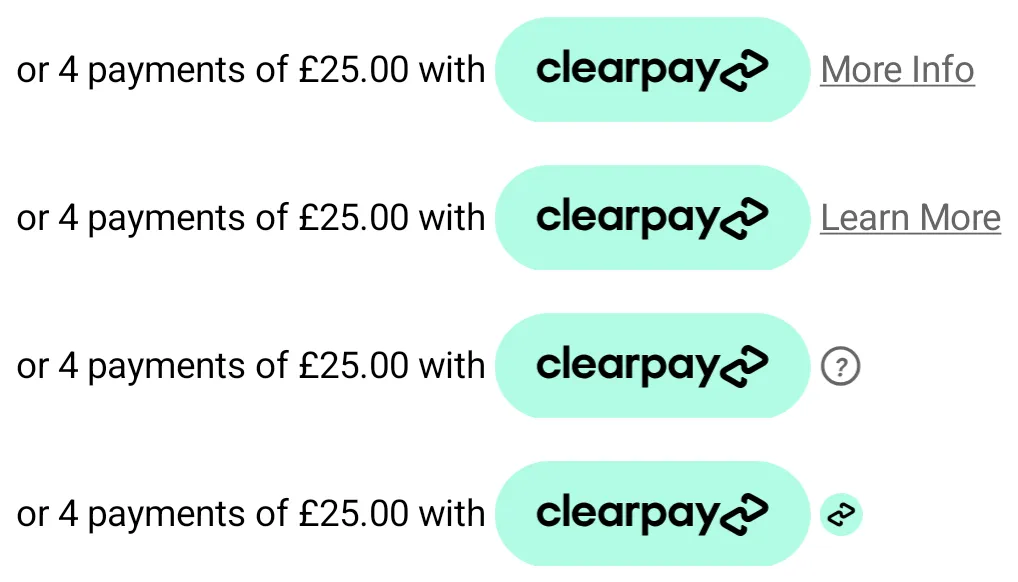
To use your own link content, call AfterpayModalLinkStyle.Custom.setContent with a CharSequence before you set the options:
Custom is a single shared object, so its content applies to every price breakdown that uses it.