

PrestaShop
PrestaShop is an open source eCommerce platform that works on the PHP scripting language.
Clearpay has a module that can be installed in the back office admin area for PrestaShop.
Before you begin
Before you install the Clearpay module:
- Ensure that you have a Clearpay account, you can sign up here UK
- Check your PrestaShop version. The Clearpay module is only compatible with versions 8, 1.7.x and 1.6.x
Installing and configuring the Clearpay module
- In the PrestaShop admin panel, navigate to Modules > Module Catalog.
- Search for Clearpay and click Install.
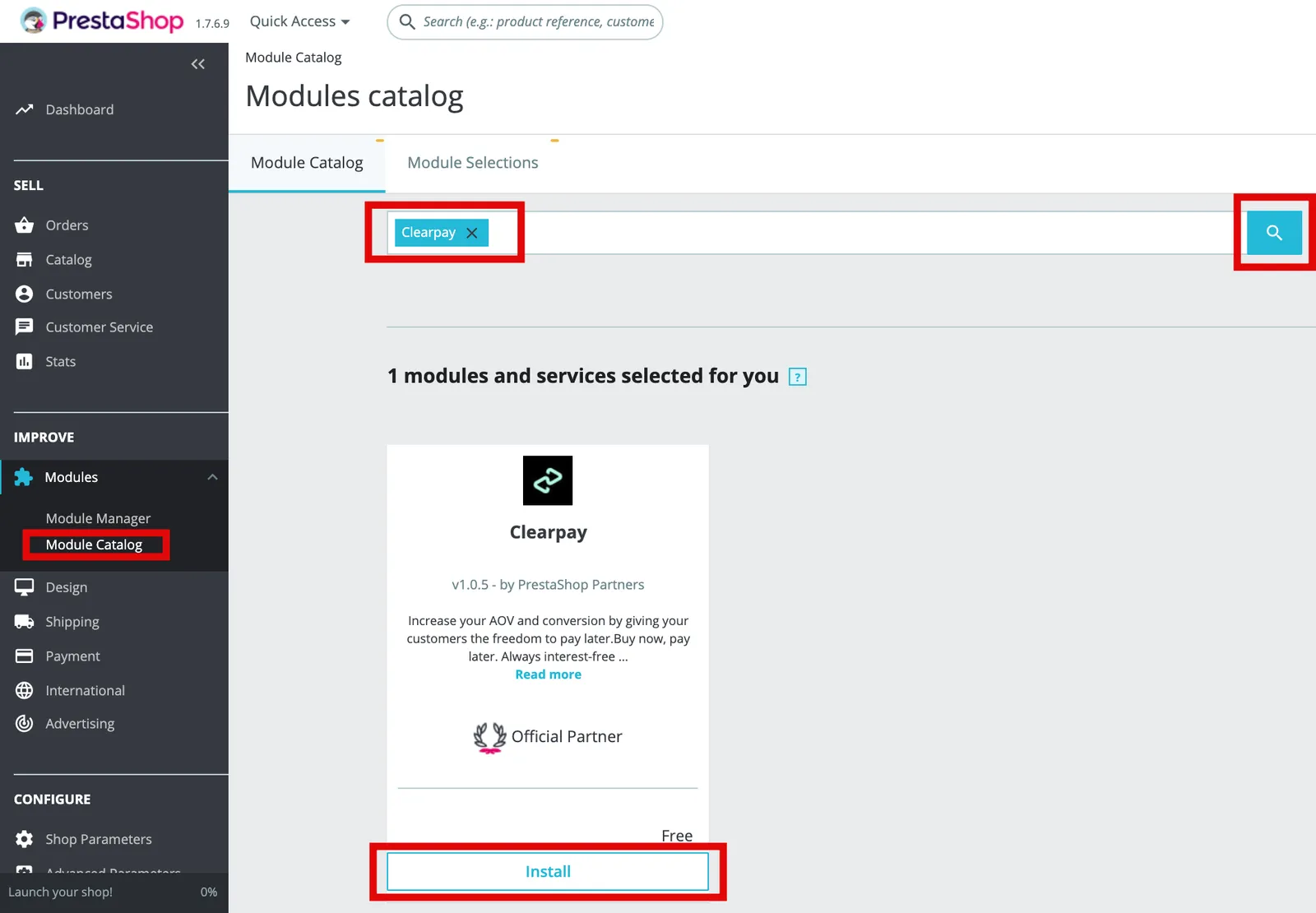
- Click Configure. The Clearpay configuration panel appears.
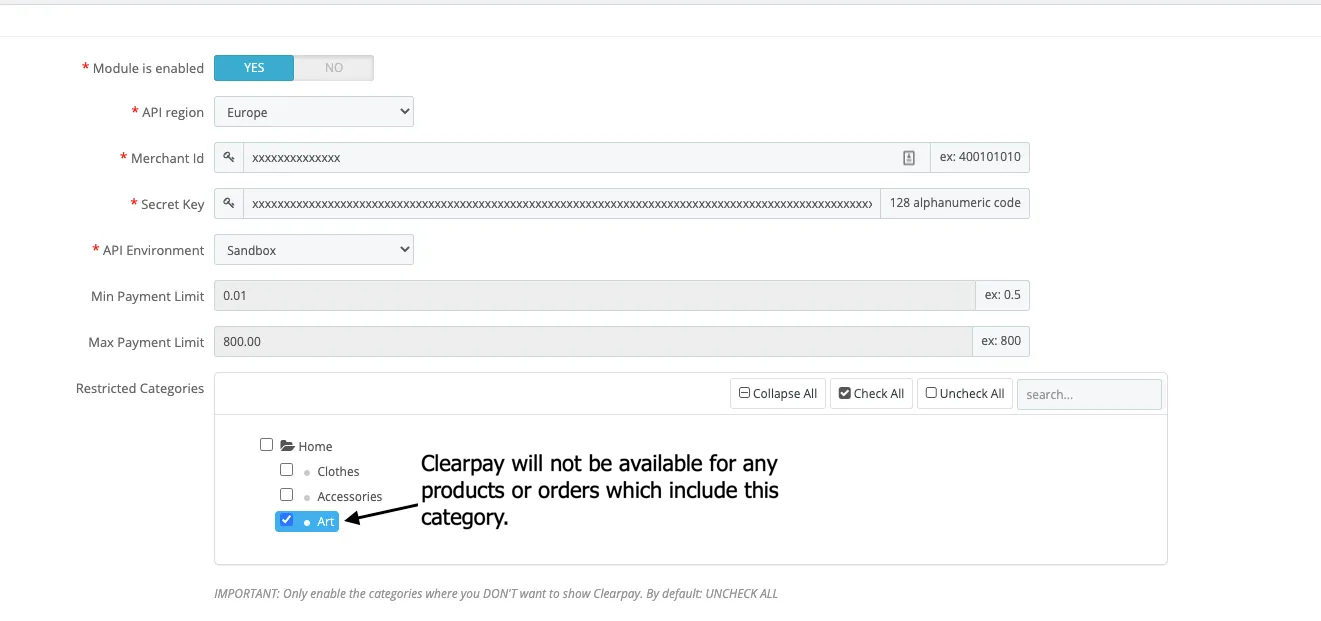
- Enter your Clearpay merchant ID and secret key.
- Ensure the Module is enabled field is toggled to Yes.
- Set the API environment dropdown to Production.
- Click Save.
Check whether the module has been installed and configured correctly, check that the Clearpay option is displayed on your product pages and at checkout.
FAQ
Why does an Unauthorised error message appear when I try to save the configuration?
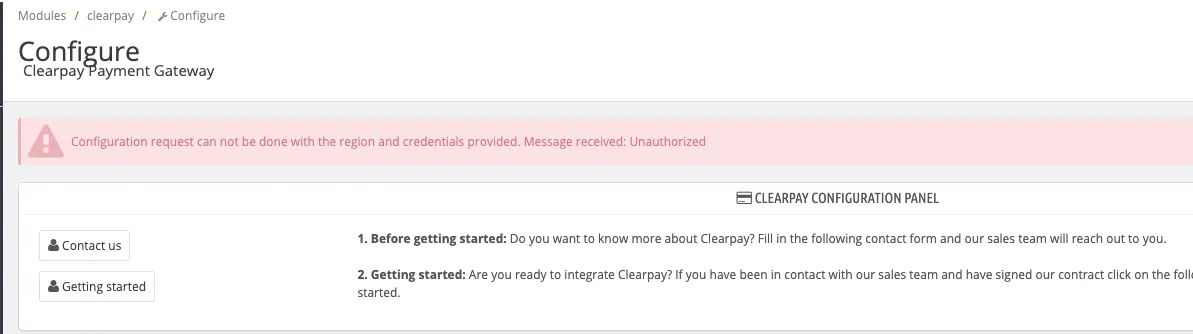
There are two common causes for this error message:
Incorrect merchant credential configuration
Make sure that you enter the Merchant ID and Secret Key correctly. Do not have blank spaces either before or after these codes.
The Environment is set to Sandbox instead of Production
Make sure that you select the Production API environment in the Settings menu.
Can I prevent Clearpay being available for specific products?
If you have categories that do not comply with the Clearpay standards for authorized products, you must mark them as restricted on the admin panel configuration.
Those categories selected as restricted will prevent Clearpay being available on the:
Product Page - If the product belongs to a restricted category, the Clearpay widget is not present on the product page.
Cart Page - If some of the products in the cart belong to a restricted category, the Clearpay widget is not present on the cart page.
Checkout page - If some of the products in the checkout belong to a restricted category, Clearpay does not appear on the checkout page as a payment option.
Updating the Clearpay/PrestaShop Module
Clearpay periodically updates its module.
There are two ways to ensure your module is up-to-date:
We strongly recommend that you always use the latest version of the Clearpay module.
Use the PrestaShop Marketplace
When a new version of the Clearpay module is released on the PrestaShop Marketplace, the PrestaShop store should detect the new version. The PrestaShop store automatically shows the upgrade option.
To upgrade, to the following:
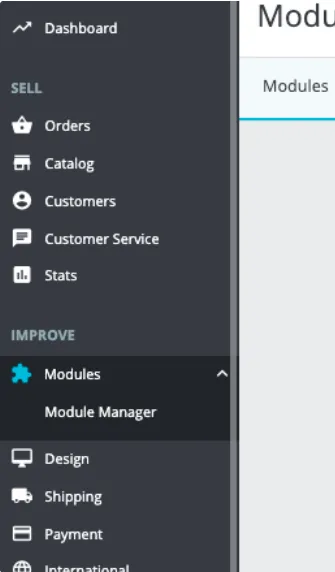
- Go to the Module Manager section on the left menu bar. See the picture below:
- Use the search bar to find the Clearpay installed module and click Upgrade available.
- A confirmation window appears, see the picture below:
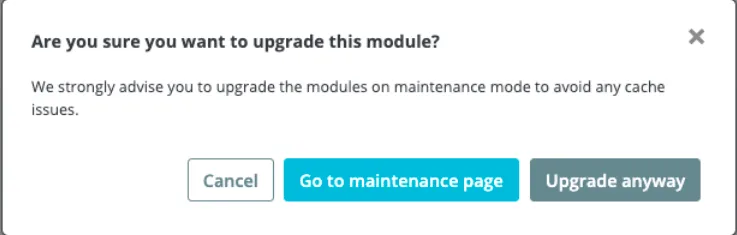
- Ensure you have a backup of the site before any upgrade. Click Go to maintenance page to avoid possible cache issues. Click Upgrade Anyway if you have a backup of the site and are confident you can problem solve if necessary.
When the upgrade is finished you receive a confirmation message. The Actions button shows the regular options.
Open the Clearpay configuration Settings section to check that all the configurations are correct after the upgrade. See the picture below:
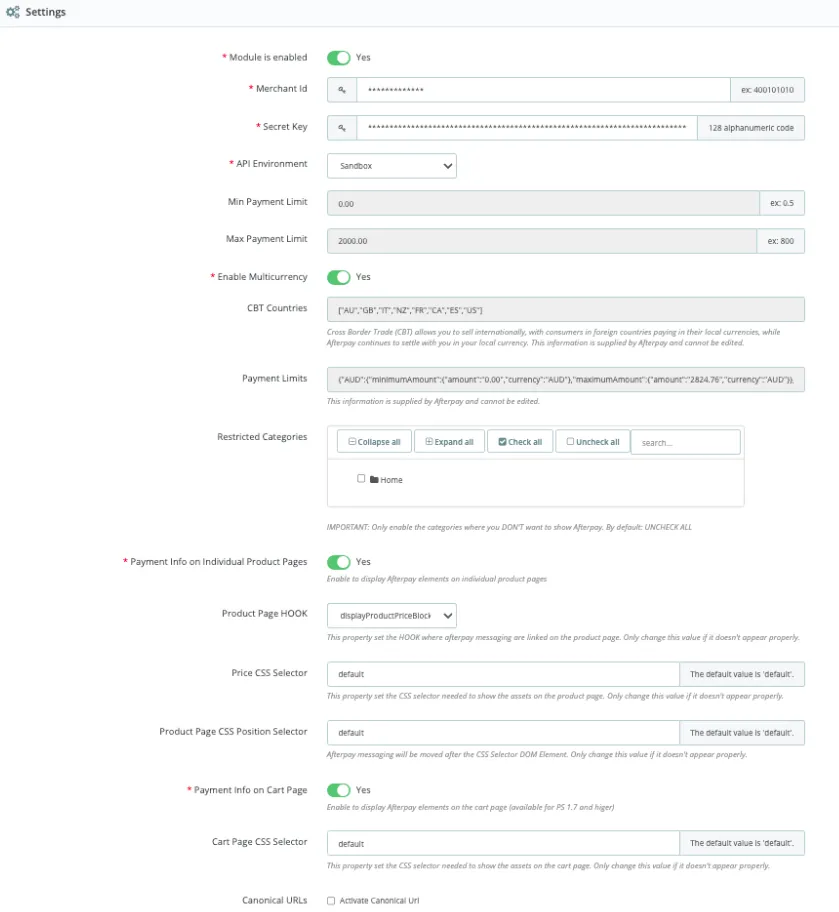
Use the Module Manager Updating Tool
This is a manual update procedure you can use if you have disabled the upgrade option on your store. Do the following:
-
Go to the Module Manager Admin panel.
-
Go to the Prestashop Addons Marketplace and download the upgrade you want. We strongly recommend that you always have the latest version of the code.
-
To download the files you must be logged into your PrestaShop account.
-
Open the Module Manager section and click Upload a module.
-
Select the previously downloaded file from your computer and upload it. See the pictures below:
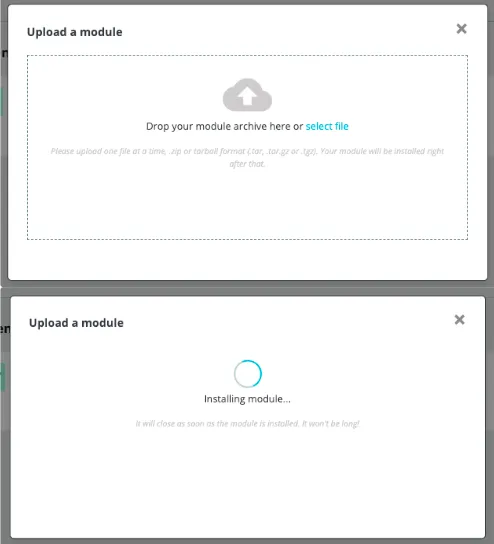
- A confirmation message appears when the module is installed.