

Set up express checkout with deferred shipping
Express checkout uses the same APIs as standard checkout. To set it up:
- Generate a Clearpay order token to set up the express checkout process
- Create an express checkout button to load the checkout window
- Create the checkout using Afterpay.js
- Continue the checkout process on your website
- Show and update the payment schedule using the checkout widget
- Capture payment to finalize the order
Generate a Clearpay order token
Before launching Clearpay express checkout, create an order token by calling the Create Checkout endpoint. This lets you specify the order amount, items, and other details.
The backend call is triggered when the express checkout button is clicked. A new token is required for each order. If you store the token in a database, be sure to support arbitrary string length and content, as a token’s format can change.
For express checkout orders, there are two key differences from standard checkout:
- Set
modetoexpress - Optionally, use a single
popupOriginUrlinstead ofredirectConfirmUrlandredirectCancelUrl. With deferred shipping, you can also use a redirect.
Create an express checkout button
When a customer clicks this button on a cart or product page, it launches Clearpay checkout in a popup.
- Add a standard HTML
<button>element wherever you want it to appear on your website. - Assign a unique ID (for example,
Clearpay-express-button). This allows you to have multiple buttons on the same page. - Set the entry point using the
data-Clearpay-entry-pointattribute. Allowed values are:product-pagemini-cartcart
- Set the button label using the
data-Clearpay-checkout-button-labelattribute. This identifies the button for analytics or tracking purposes.
Button options
Multiple button styles are available, each clearly communicating the next step to the customer.
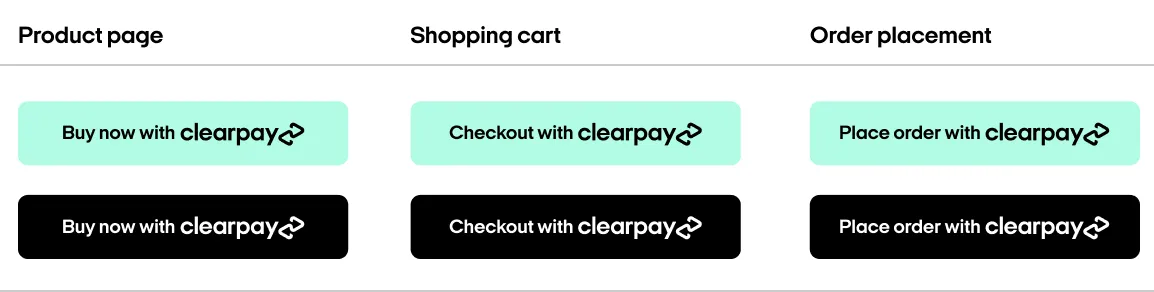
Create checkout
Load Afterpay.js
Add the Afterpay.js script to your website. Set the onload attribute to point to a custom function that will initialize the popup (for example, initAfterpay).
Initialize the popup window
Define your initAfterpay() function before loading the script. This function uses Afterpay.initializeForPopup() to configure the express checkout behavior. Configure the following properties:
countryCode: Your merchant account’s two-character ISO 3166-1 code (use “GB” for United Kingdom)target: The ID or class of the button that triggers checkout- Set the flag
shippingOptionRequiredtofalse - Handle lifecycle events:
onCommenceCheckout: Retrieve the Clearpay token from your server, then callactions.resolve(TOKEN)to start checkout.onComplete: See “finalize the order” for details.
Customer completes checkout
When the customer clicks the Clearpay checkout button, a popup opens or they’re sent to your redirect link. The customer is prompted to log in and review their order details. They can select a payment method and delivery address.
After confirming their order, the popup closes and the customer returns to your site. Checkout completion is communicated via the onComplete callback.
Finalize the order
When the customer completes Clearpay express checkout, the onComplete Javascript function is called. It receives an event argument with a data field containing the following properties:
orderInfo data properties
Get order details
Retrieve the transaction details by calling the Get Checkout endpoint. This is the source of truth for the order. It includes the user’s name, email address, delivery address, phone number, and order total.
Continue the checkout process
After getting the order details, continue the checkout on your site. To continue:
- Prefill your checkout using the Clearpay order details
- Have the customer select a delivery method
- Optionally, offer promo codes and allow changes to the order details
- Display the Clearpay checkout widget on the final review page or at all steps of your checkout. We recommend setting up the checkout widget before continuing.
Capture payment
You can capture payment using either the immediate payment flow or the deferred payment flow. For express checkout, the payload must include an amount field, which verifies that the final amount matches the amount including the shipping and taxes.
For deferred shipping, in addition to the required amount field, include these additional fields in the payload. These are required to verify that the final order amount and payment schedule match the submitted order details.
isCheckoutAdjusted: Indicates whether changes were made since order creationitems: Updated list of order items (if changed)shipping: Updated shipping address (if changed)paymentScheduleChecksum: Latest value from your widget’sonChangecall (see Getting the widget’s state)
If the final amount (including shipping and taxes) or the paymentScheduleChecksum doesn’t match the expected values, the request will be rejected.
Once payment is captured, the express checkout order is complete.
Data payload properties
Optional features
Target multiple checkout buttons
If you have multiple checkout buttons on the same page, these can be targeted by adding a common class to each of these buttons:
Then, set the target in the Afterpay.js initialize function with the common class. For example, set target in initializeForPopup:
Use a redirect flow
With deferred shipping, you can also use a redirect flow with express checkout. There are a few main differences when setting up the button for redirect, including:
- Creating an order token for redirect
- Using the
initializeForRedirectmethod - Redirecting the customer to finalize the order
To set up your redirect flow, first create a Clearpay order token using the Create Checkout API. Make sure to set the mode to express.
Then, start by creating the Clearpay express checkout button, adding an entry point, and loading Clearpay.js. This is similar to the popup flow.
In your onload function, initialize the redirect flow by calling initializeForRedirect and configure the following:
countryCode: The two-character ISO 3166-1 code for your merchant account (use “GB” for United Kingdom)addressMode: Use a mode without shipping options, as integrated shipping isn’t supported for redirect flows.target: The ID or class of the button that initiates checkout- Handle lifecycle events:
onCommenceCheckout: Retrieve the Clearpay token from your server, then callactions.resolve(TOKEN)to start the checkout process.
Address mode
To support different shipping types in the checkout, configure the addressMode property using one of the provided constants in the format Afterpay.ADDRESS_MODES.<NAME>, where <NAME> is one of the following:
Next, finalize the order. When you created the Clearpay order token for redirect, you defined the properties redirectConfirmUrl and redirectCancelUrl. After the customer completes Clearpay express checkout, these properties are used to direct them to the specified URL:
- If successful, they are redirected to
redirectConfirmUrl - If cancelled, they are redirected to
redirectCancelUrl
Once the customer returns to your site, follow the steps to get the order details.
Errors
The following errors can occur during Clearpay express checkout with deferred shipping: