

Integrated Shipping
This feature improves the user experience by embedding your shipping options directly into the Clearpay Express Checkout flow. It streamlines the checkout process and can be combined with the buyNow flag to create a one-stop checkout that immediately precedes the order confirmation page.
We recommend the Integrated Shipping flow for merchants with:
- Fewer than 5 shipping options
- Single shipping option for an entire order (i.e. no SKU level options)
- Simple tiered shipping options (e.g. standard, express, rush)
- Pickup in-store option before checkout entry
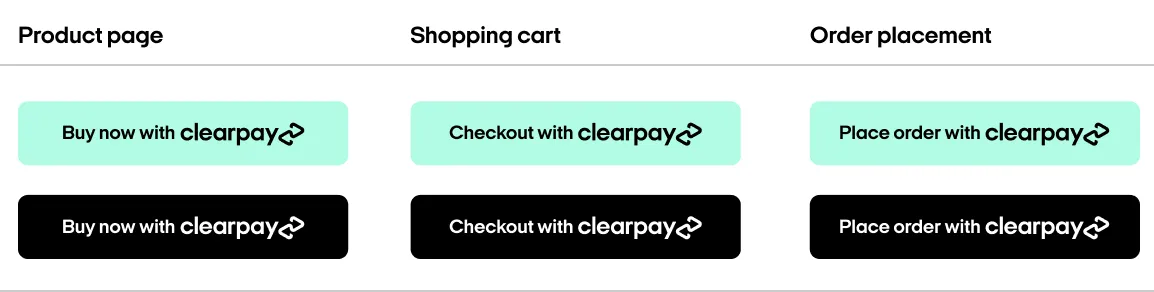
Multiple button styles are available, each clearly communicating the next step to the customer.
Integrated Shipping is configured in the call to initializeForPopup triggered by the Express Checkout button.
It requires shippingOptionRequired to be true (enabled by default) and an onShippingAddressChange callback must be defined:
Full Example with Integrated Shipping
Integrated Shipping is enabled by default for Express orders. To disable it, shippingOptionRequired must be set to false.
Restrictions
Integrated Shipping requires the Express Checkout flow to be launched as a popup, due to the way shipping information is communicated over the frontend. The redirect method is not supported.
Listening for Address Changes
The Shipping Address Change callback is a feature of the Express Checkout. This callback allows a merchant to dynamically update shipping options and taxes based on the shipping address chosen by the consumer.
The shipping address change callback is required:
- If you intend to update the order total based on a chosen shipping address.
- To validate that you can ship to the selected address.
To set up the Shipping Address Change callback, implement the onShippingAddressChange function. This function will be passed two arguments: **data **and actions.
How the shipping options are calculated is entirely managed by the merchant. They can be calculated in Javascript or by handing off to an internal API.
If shipping options are available for the given address, they can be returned to Clearpay using the resolve action as shown in the code example below. Similarly, the reject action is used when shipping is unavailable.
Example retrieving shipping options via API
Example calculating shipping options in JS
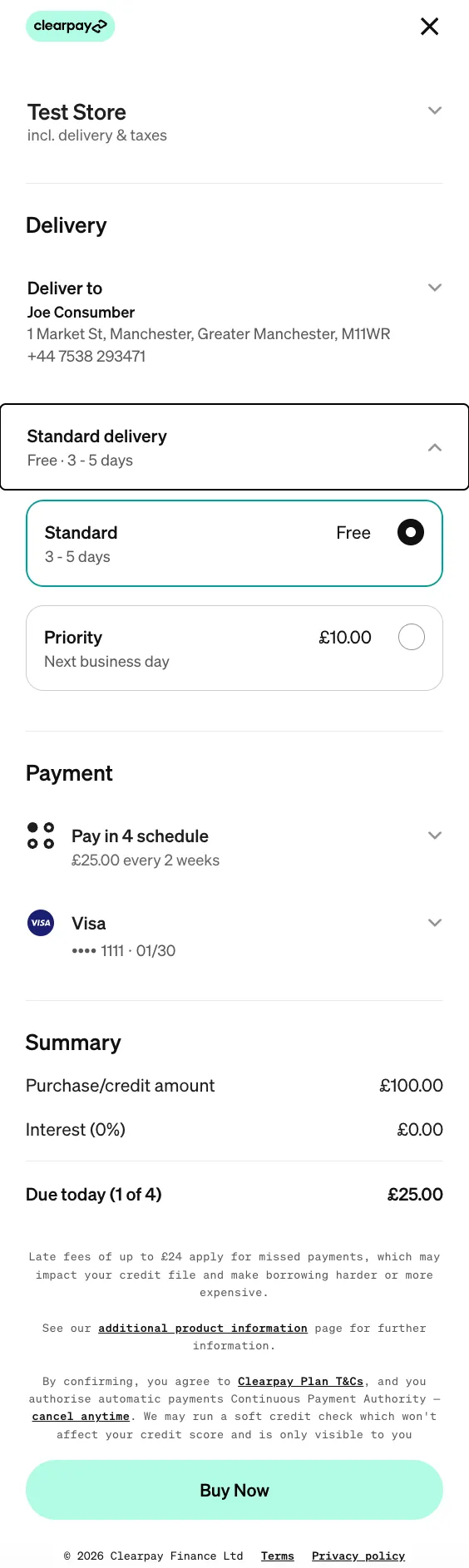
Clearpay calls your onShippingAddressChange function when:
- The consumer first enters the Clearpay summary page
- The consumer makes a change to their shipping address on the Clearpay summary page
Clearpay provides the following parameters to your onShippingAddressChange function:
-
data parameter: This contains the consumer’s selected address with fields:
name,phoneNumber,address1,address2,area2,suburb,state,postcodeandcountryCode
-
action parameter: This object is used to return your response to the Clearpay checkout. It consists of the following methods:
resolve: Call this method to provide the shipping options applicable to the consumers address. Takes an array of Shipping Option objects.reject: Call this method when you are unable to handle the request. Do not throw an error, instead call this method with a Shipping Constant as the first argument to indicate a status, e.g.:
Shipping Option Model
Shipping Constants
To indicate a number of error scenarios, actions.reject() may be invoked with a provided constant.
These are of the form AfterPay.constants.<NAME>, where <NAME> is one of:
Clearpay Express Checkout does not perform any arithmetic. It is the responsibility of your web app to calculate the correct total. Each shipping option must have a total order amount including taxes and shipping.
Listening for Shipping Option Changes
The onShippingOptionChange callback allows a merchant to track the user’s chosen shipping option as it changes. It is optional, and will be called each time a user selects a shipping option. This function is passed one argument: data
data parameter (object): This contains the consumer’s selected shipping option, as provided in the response from onShippingAddressChange, with fields:
Listening for Warning/Error messages
To facilitate handling of logging/warning/error messages, AfterPay.onMessage can optionally be replaced with a custom function. The default function is:
Buy Now
When the Express Checkout is complete, you may either call the Auth endpoint immediately or continue checkout on your review page. If you are authorizing (or capturing) payment immediately, set the buyNow flag to true - this shows the user a “Buy Now” button at the end of their Clearpay journey.
Configuring a pickup order
The Express Checkout experience can be tailored for Click & Collect and other pickup flows by following these steps:
- Allow your users the ability to choose pickup options before they select Clearpay Express. This should include any decisions that may impact the cost of delivery, for instance pickup location and date.
- If the user has opted for pickup, provide the chosen pickup address when creating the order via the
shippingbody parameter — e.g
- When invoking
initializeForPopup
- Set the pickup flag to true.
- Configure your onShippingAddressChange handler to return the name and description of their pickup choice. This will likely mean returning only a single option — e.g
Depending on your configuration, your frontend may have already invoked initializeForPopup before knowing whether the user will opt for pickup.
It is safe to invoke initializeForPopup multiple times; each call will overwrite the previous settings. In this case you may choose to call initializeForPopup in response to the user selecting a pickup option.
- You may choose to collect additional information regarding the pickup, e.g. electing another person to pick up the order, at your order review page. These details must not affect the order total.