

[DRAFT] Afterpay Product Page Display
[DRAFT] Afterpay Product Page Display
BigCommerce Theme Platform
The below instructions are for BigCommerce themes built using the Stencil theme platform.
Configuration
Completing the below steps will position the Afterpay Product Page assets on your BigCommerce website.
-
Navigate to the below link:
https://static.afterpay.com/bigcommerce-afterpay-stencil-product.html -
Click the ‘Copy to Clipboard’ button.
INSERT SCREENSHOT HERE
- Navigate to: BigCommerce Control Panel.
- Navigate to: Storefront > My Themes.
- Make a copy of your Current Theme by clicking ‘Advanced > Make a Copy’

- Add ’ - Afterpay’ to the Theme Name and click ‘Save a Copy’.

- Under the ‘My Themes’ section, locate the theme copy, click the breadcrumbs and then ‘Edit Theme Files.’

-
Navigate to: templates > components > products
-
Open the product-view.html file.
-
Search the product-view.html file for:
-
Open the product-view.html file.
Paste the copied text (Step 2), at the bottom of the ‘theme.liquid’ file.
Paste the copied text (Step 2), at the bottom of the ‘theme.liquid’ file.
- Paste the copied text (Step 2), at the bottom of the ‘theme.liquid’ file.
- Paste the copied text (Step 2), at the bottom of the ‘theme.liquid’ file.
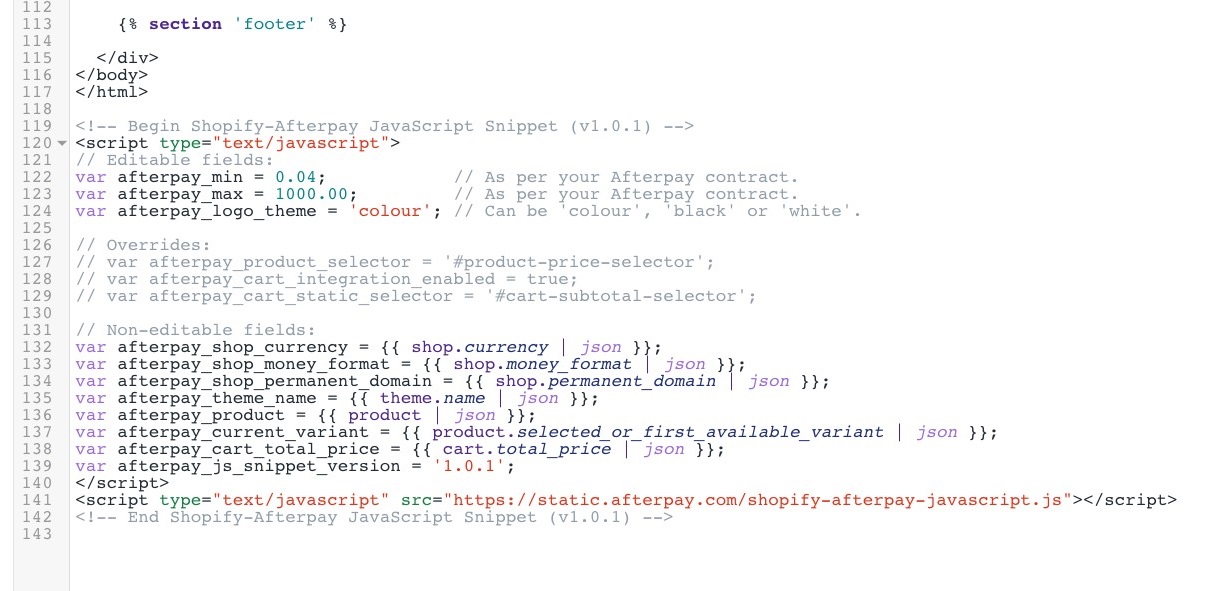
-
Click Save.
-
Navigate to the website and review the product page for Afterpay assets.
Example below
