> This page is for version v2 (default).
> For other versions, use one of these documentation indexes:
> - v2 (default): https://developers.clearpay.co.uk/v-2/llms.txt
> - v1: https://developers.clearpay.co.uk/v-1/llms.txt
> For clean Markdown of any page, append .md to the page URL.
> For a complete documentation index, see https://developers.clearpay.co.uk/llms.txt.
> For AI client integration (Claude Code, Cursor, etc.), connect to the MCP server at https://developers.clearpay.co.uk/_mcp/server.
# Manually Add Clearpay Site Messaging to Theme
The Clearpay Code Snippet allows you, the merchant, to manually add Clearpay messaging to the product and cart pages. You do this by copy-pasting a code snippet into your Shopify liquid template file. This is a short procedure that consists of a few steps.
This page shows you how to do the following:
* [Configuration](#configuration)
* [Add a Clearpay Banner to Shopify](#add-a-clearpay-banner-to-shopify)
* [Add Messaging to the Dynamic or Drawer Cart](#add-messaging-to-the-dynamic-or-drawer-cart)
## Configuration
Do the following to position the Clearpay site messaging onto the product and cart pages of your Shopify website:
1. Copy the code below to your clipboard, a **Copy to Clipboard** icon in the top right corner makes this easy.
**`JavaScript`**
```javascript JavaScript
{% if cart.currency.iso_code == shop.currency %}
{% else %}
{% endif %}
```
2. Login to [Shopify Admin](https://accounts.shopify.com/lookup?rid=edf4fd64-060c-48a7-bf95-095eb87b831c)
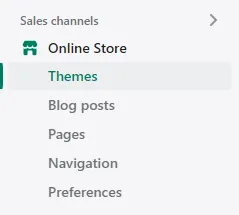
3. Navigate to **Themes**. To do this, go to **Sales channels** > **Online Store** > **Themes**.
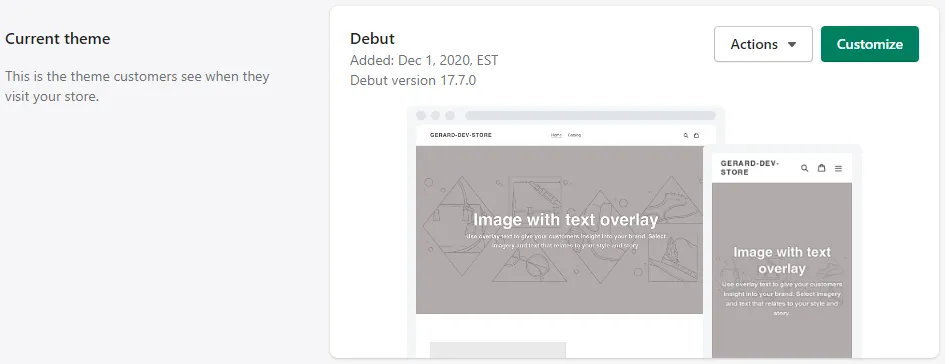
4. Navigate to the current theme, then go to **Actions > edit code**.
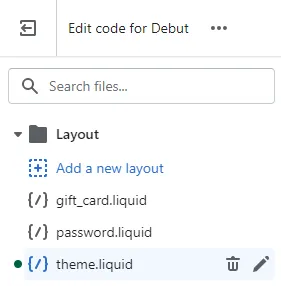
5. Under the **Layout** folder, click **theme.liquid**.
6. Scroll to the bottom of the `theme.liquid` file:
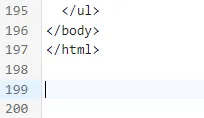
7. Paste the copied text (Step 1), at the bottom of the `theme.liquid` file:
8. Click **Save**, and go to the website to review the product and cart pages for Clearpay assets.
9. If the Clearpay messaging does not appear in your desired location, update the selectors within the script to match your theme. For the Product Page, update the selectors on lines 14–16. For the Cart Page, update the selectors on lines 20–23.
10. The product selector and cart static selector control the positioning of the Clearpay messaging. If required, uncomment lines 15 and 21, set the fallback option to true, and update the fallback selectors to target the product page and cart page price elements.
11. Select **Save** to apply your changes. The updated selectors will take effect immediately.
> **Note**
>
> Shopify have a help topic on editing Liquid files [here](https://shopify.dev/docs/api/liquid).
## Add a Clearpay Banner to Shopify
To add a Clearpay Banner to your Shopify page, see the [Add a Clearpay Banner to Shopify](/add-a-clearpay-banner) page.
## Add messaging to the dynamic or drawer cart
To add messaging to the dynamic or drawer cart, do the following:
1. Follow all the [Configuration](#configuration) steps above from step 1 to step 8.
2. Navigate to your `theme.liquid` file.
3. Find the required selector on the drawer cart.
4. Add the selector to the code and enable the dynamic cart integration.
### Example Code snippet for Clearpay
```js
// var clearpay_dynamic_cart_integration_enabled = true;
// var clearpay_dynamic_cart_selector = '.cart-drawer__footer .totals';
// var clearpay_dynamic_cart_observer_target = '#CartDrawer';
```
### Example of code with selectors
```js
var clearpay_dynamic_cart_integration_enabled = true;
var clearpay_dynamic_cart_selector = '.total';
var clearpay_dynamic_cart_observer_target = '#CartDrawer';
```