> This page is for version v2 (default).
> For other versions, use one of these documentation indexes:
> - v2 (default): https://developers.clearpay.co.uk/v-2/llms.txt
> - v1: https://developers.clearpay.co.uk/v-1/llms.txt
> For clean Markdown of any page, append .md to the page URL.
> For a complete documentation index, see https://developers.clearpay.co.uk/llms.txt.
> For AI client integration (Claude Code, Cursor, etc.), connect to the MCP server at https://developers.clearpay.co.uk/_mcp/server.
# Launch Clearpay Info Modal Anywhere
This page is a short guide on how to use JavaScript to enable any element to open the Clearpay information modal.
For the customer, it should be a single click operation; click on any on-screen element and the Clearpay information modal opens.
## Instructions
Do the following:
1. Open your existing messaging script with an HTML editor.
2. Load `square-marketplace.js` script in the HTML, see the example below:
```html
```
3. Add `data-afterpay-modal="en_GB"` attribute to any element. When a customer clicks that element, it now opens the Clearpay information modal. Here's an example code snippet that opens when a customer clicks the icon symbol:
```html
Or 4 interest-free payments with
[Clearpay Logo] ⓘ
```
> **Note**
>
> In line 3 of the code above above, there is a `"=en_GB"`at the end of the ``. If you do not include this `"=en_GB"`then your info modal is Afterpay branded, which is an error.
### Regional Modal Themes
| Region | Accepted Values |
| -------------- | ---------------------------- |
| United Kingdom | "en_GB", "en_GB-theme-white" |
For example:
`[Clearpay Logo] ⓘ`
Results in a modal suitable for British merchants.
> **Note**
>
> You can find instructions for launching the Info Modal in other regions by going to the [Afterpay version of this page](https://developers.afterpay.com/docs/api/afterpay-messaging/launch-afterpay-info-modal-anywhere) .
### Optional - Change Info Modal Theme
This is an option for merchants who want to use a white modal theme. Only assign a value to the `data-afterpay-modal="en_GB"` attribute if you want to use white non-default modal theme.
> **Warning**
>
> If you try to assign an invalid value to the `data-afterpay-modal` attribute, you will cause an error. For the standard Clearpay modal theme, use the `data-afterpay-modal="en_GB"` attribute without an assigned value.
Here is a code example of a default modal theme:
```html
Or 4 interest-free payments with
[Clearpay Logo] ⓘ
```
The code example above produces a standard Bondi Mint modal theme:
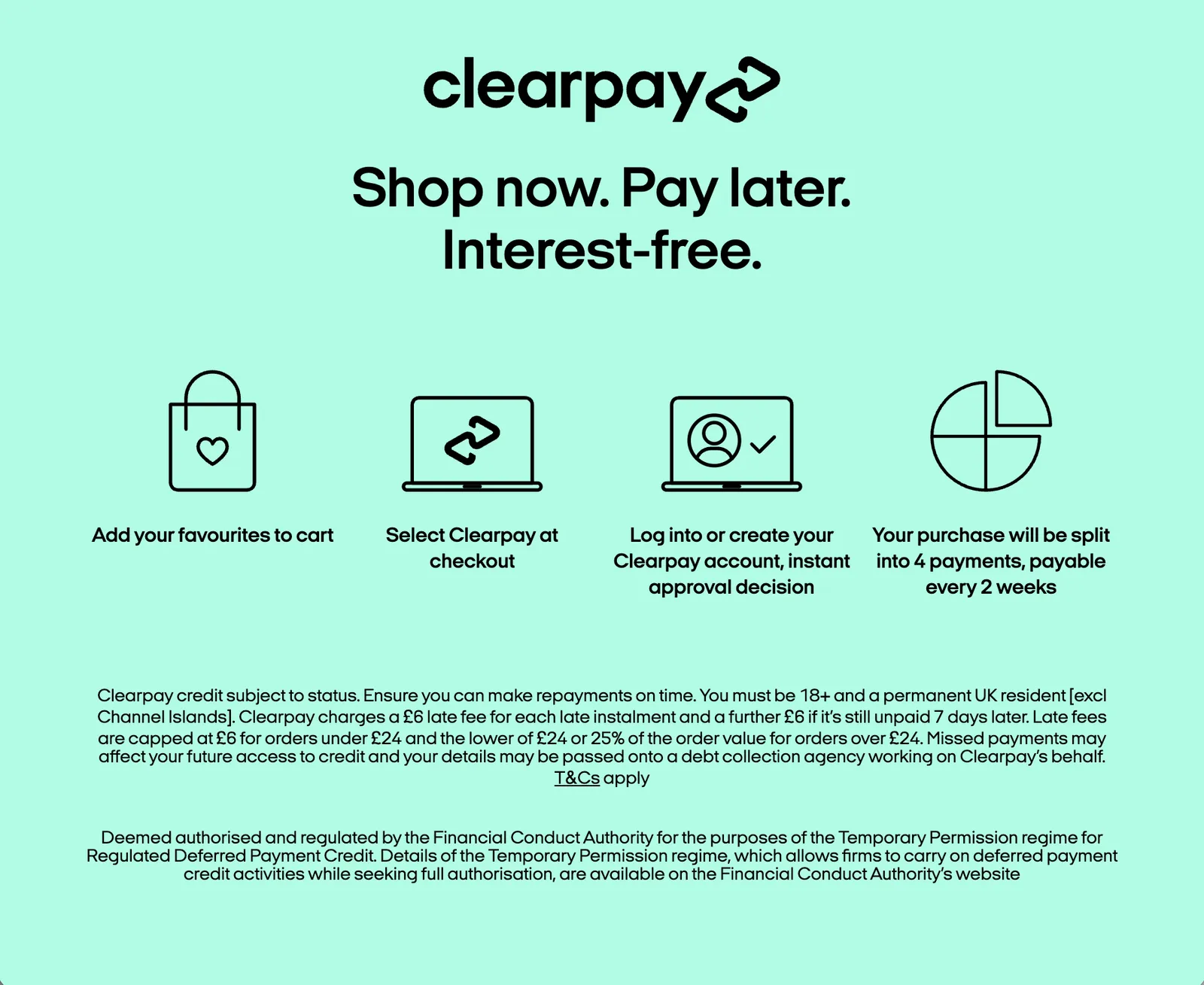
Here is a code example of a white modal theme:
```html
Or 4 interest-free payments with
[Clearpay Logo] ⓘ
```
The code example above has extra text in this line that defines the non-default theme:
`[Clearpay Logo] ⓘ`
Remember the default is Bondi Mint modal theme. Instead, the code example above produces a standard white modal theme that is not the default:
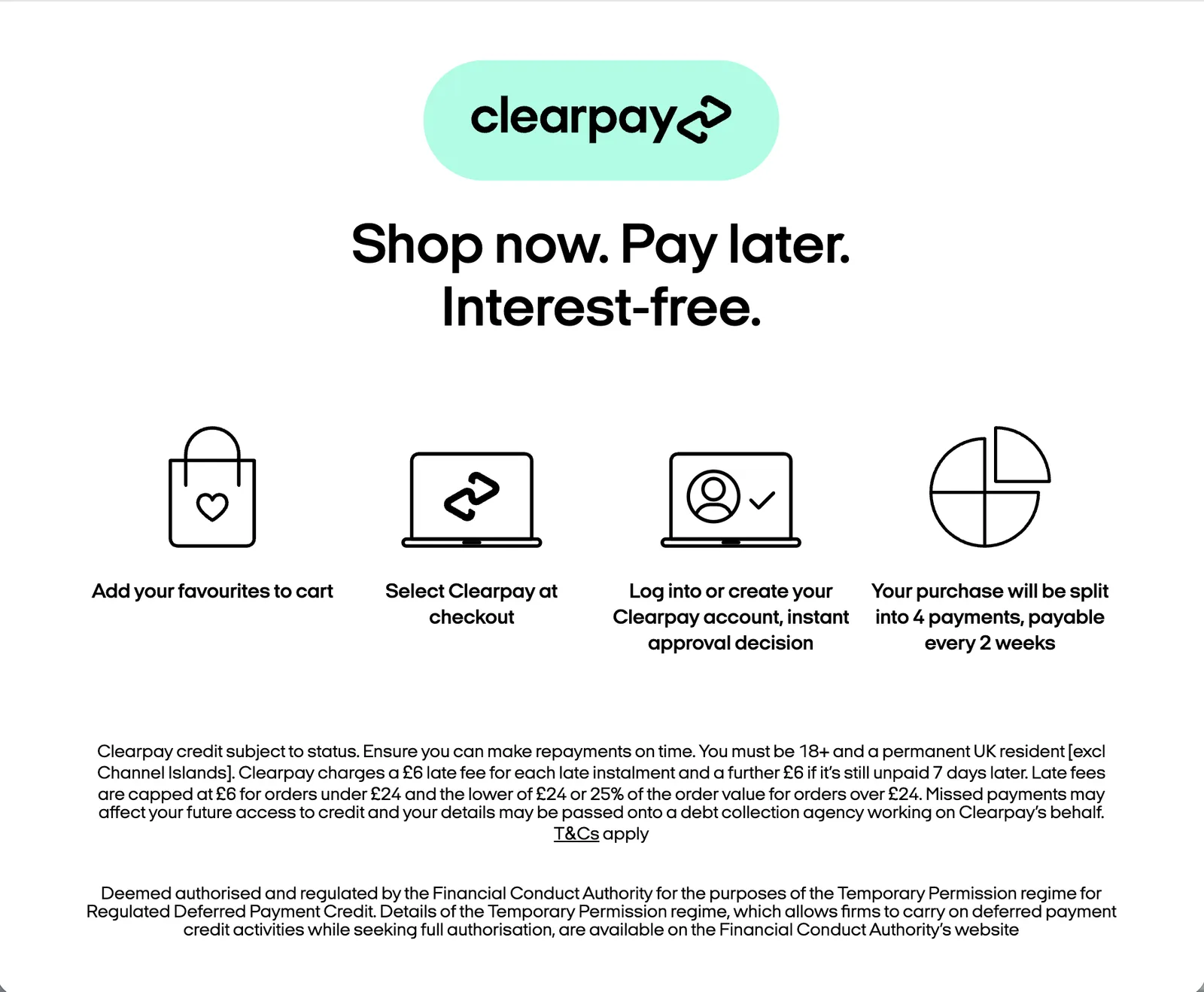
If you assign an incorrect value to the `data-afterpay-modal=` part of the code, an error message appears.