HomeGuidesAPI Reference
  • Welcome
    • Getting Started with Clearpay Online
  • Shopify
    • Pre-Integration Checks
    • Clearpay Gateway Configuration
    • Clearpay Product Page Display
    • Frequently Asked Questions (FAQs)
  • WooCommerce
    • Pre-Integration Checks
    • Clearpay Gateway Installation
    • Clearpay Gateway Configuration
    • Frequently Asked Questions (FAQs)
    • Plugin Updates
    • Advanced Configuration
  • Rocketspark
    • Rocketspark Gateway Configuration
  • Ecwid
    • Ecwid Gateway Configuration
  • Marketing
    • Brand Assets
    • Rebranding Kit
LogoLogo
On this page
  • Configuration
  • Configuration
Shopify

Clearpay Product Page Display

The Clearpay logo and instalment amounts will appear on the Shopify Product Pages. Note: The display may differ depending on site-specific theme and layout.

Configuration

Completing the below steps will position the Clearpay visual assets on the Product and Cart pages of your Shopify website.
  1. Click the ‘Copy to Clipboard’ button below.
  1. Navigate to Shopify Admin.
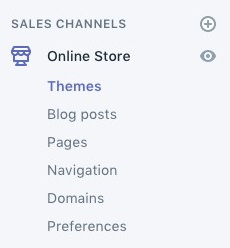
  2. Navigate to Sales Channels > Online Store > Themes.
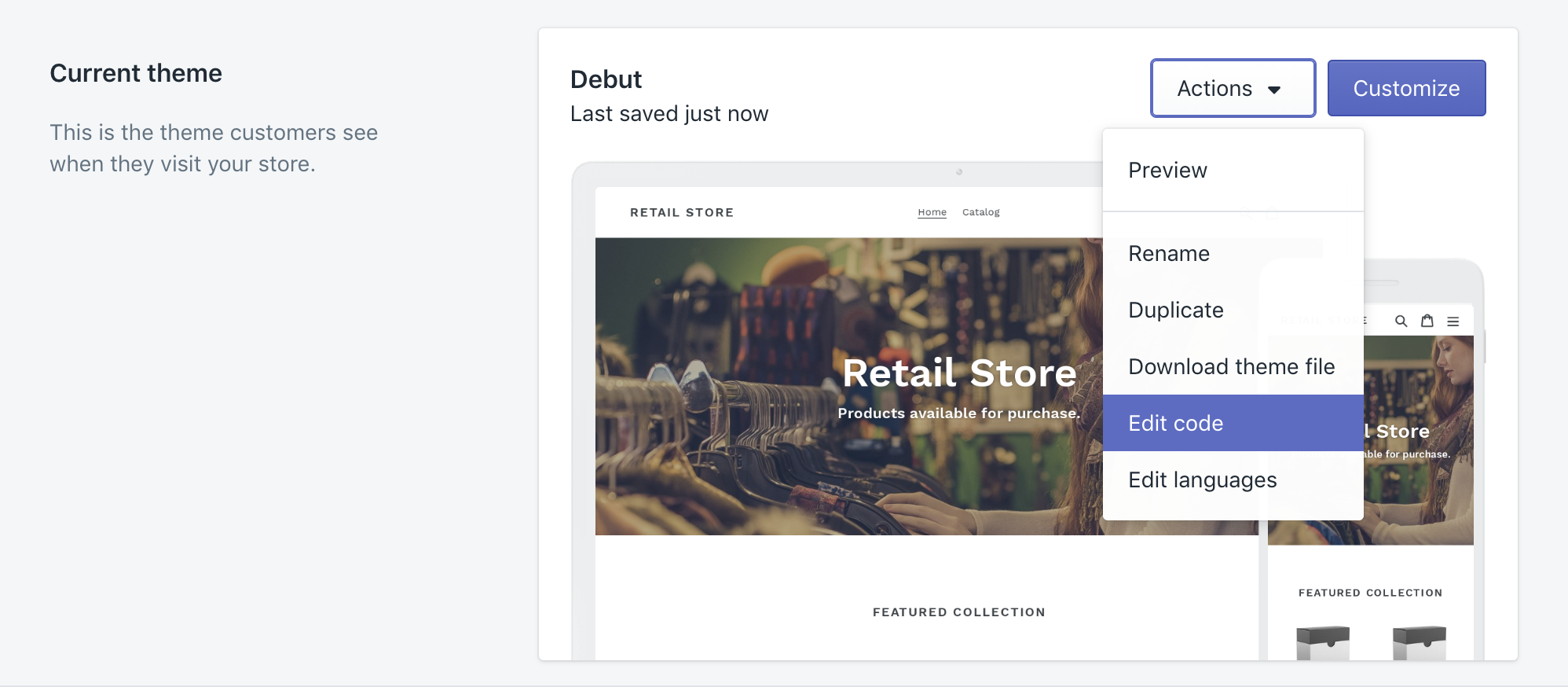
  1. Navigate to Actions > Edit Code.
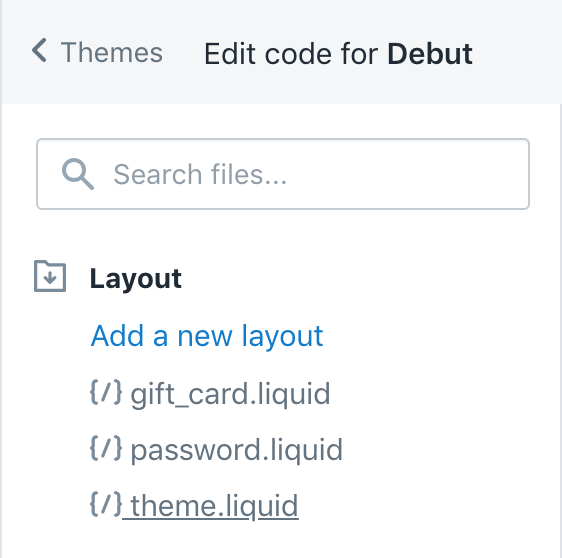
  1. Under the ‘Layout’ folder, click on ‘theme.liquid’.
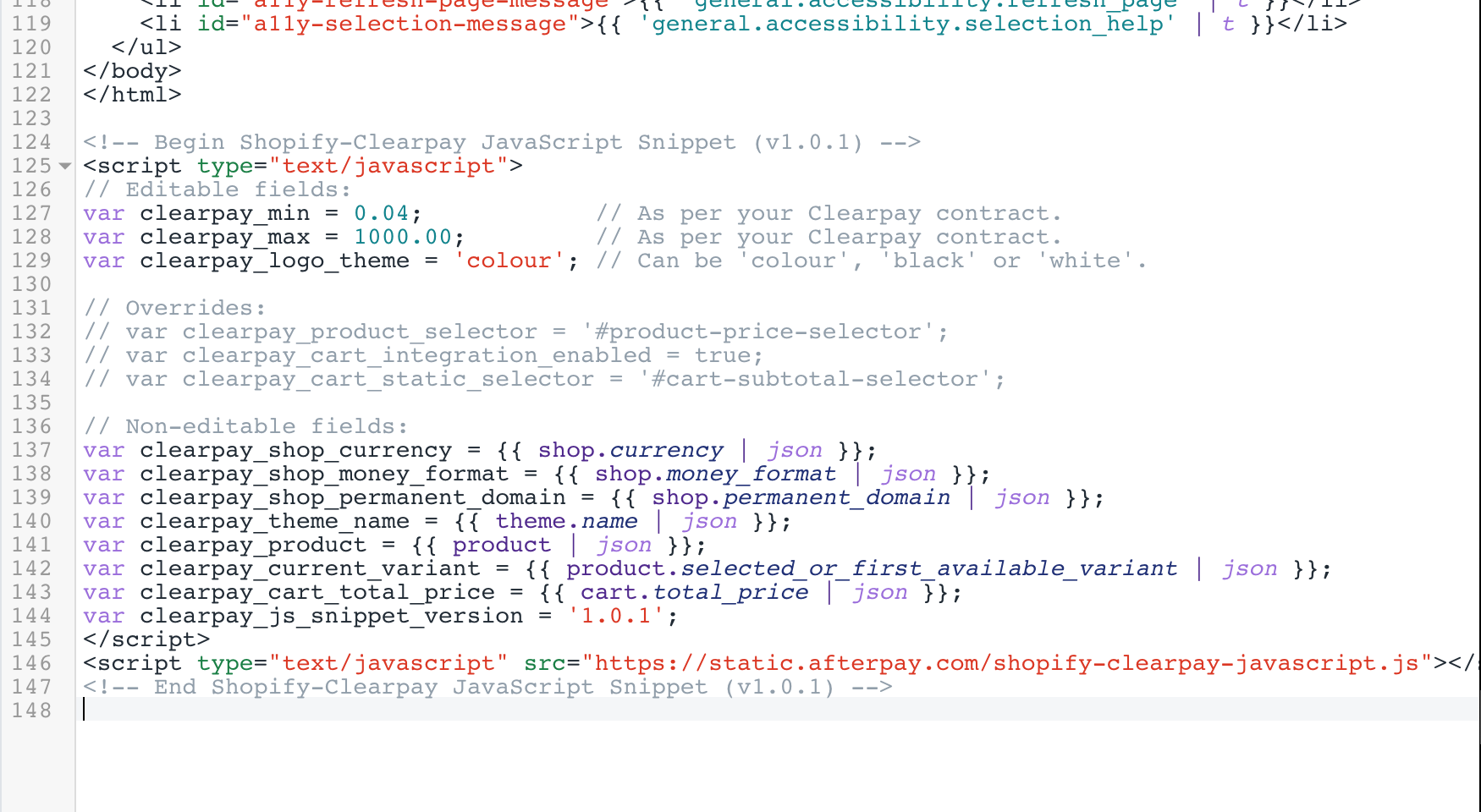
  1. Scroll to the bottom of the ‘theme.liquid’ file, and click to place the cursor at the end.
  1. Paste the copied text (Step 1), at the bottom of the ‘theme.liquid’ file.
  1. Click Save.

  2. Navigate to the website and review the product page for Clearpay assets.
    Example below

Was this page helpful?
Previous

Frequently Asked Questions (FAQs)

This section outlines the Frequently Asked Questions (FAQs) related to the Shopify-Clearpay integration.
Next

This section outlines the Frequently Asked Questions (FAQs) related to the Shopify-Clearpay integration.

Frequently Asked Questions (FAQs)